What is an Episode?
An episode is a single piece of audio or video content that an audience member consumes. All episodes that have been uploaded to the studio appear in the Episode tab in the Podcast Management Console.
In order for an episode to be accessible to an audience member, it must be published to a show, which is a curated collection of episodes.
| IN THIS ARTICLE |
|---|
Episodes
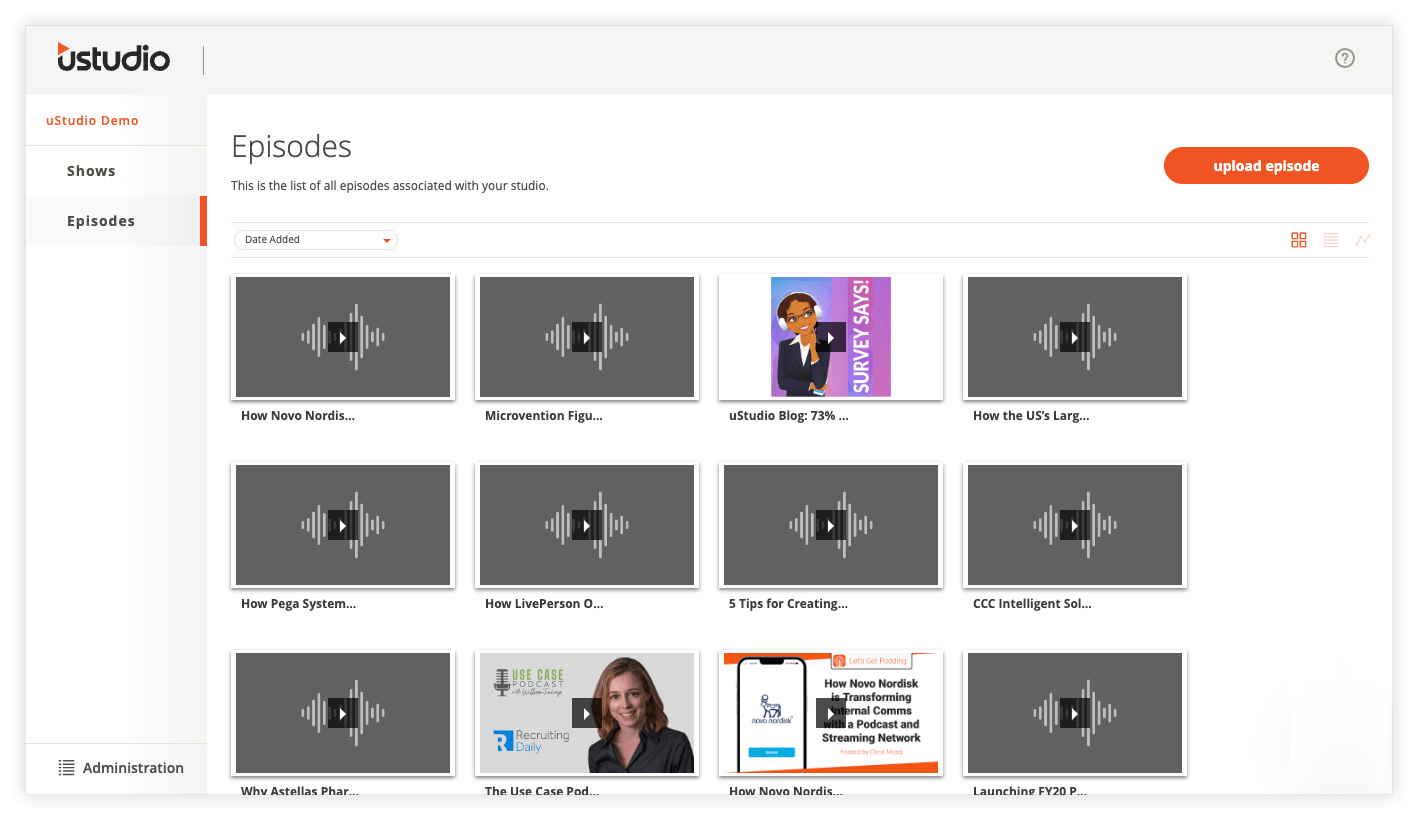
Episodes are accessed in the Podcast section of the Podcast Management Console. Here, you'll see all episodes that are uploaded into the system, regardless of whether they have been published to a show. You'll also be able to create and manage episodes.
You have the ability to sort episodes in various ways from the drop-down list on the left above the display of episodes. The order will default to Date Added but can be changed to view episodes by title or duration.
To change the view format for episodes, select either “grid view” or “list view” using the icons on the upper right. By default you will see episodes in the list view.
Making an Episode Visible to Audience Members
An episode will only be visible to an audience member when it is published to a show. Episodes are able to be published to more than one show as desired.
Create an Episode
-
Navigate to the Podcast section of the Podcast Management Console. When you are there, you will see Shows and Episodes in the left menu.
-
Navigate to the Episode tab via the left menu.
-
Click the upload episode button in the upper right corner.
-
Drag and drop one or multiple files to the upload window, or select “Choose File” to open a file finder and select one or more assets.
Best practice is to upload no more than three assets at a time and before leaving the page, wait until you see that the upload reaches 100% completion.
A progress bar will appear at the bottom of the upload window to let you know the progress of the upload. You may close out of the window as files finish uploading but do not close the uStudio PMC in your browser.
Once files have been uploaded, uStudio will take a few minutes to process and convert the file into the best format for the podcast application. You may see the episodes shown as a 0:00 duration until this is completed.
-
When the upload has finished, the uploaded episode will appear in the episodes tab using the uploaded file name as the episode title.
To change the name of the episode, follow instructions for Modifying an Episode.
Publish an Episode to Show
In order to have audience members access an episode, it needs to be published to a show. Once the episode is published to a show, all audience members who have access to the show will be able to view and play the content immediately.
There are two methods of publishing an episode to a show: via the Show Page, or via the Episode tab as illustrated below.
-
Navigate to the Podcast section of the Podcast Management Console. When you are there, you will see Shows and Episodes in the left menu.
-
Navigate to the Episodes tab via the left menu.
-
Locate the episode that you would like to publish to a show. Select Publish to show under the action column for that episode.
-
Choose which show you would like to publish the episode to and click publish.
Share an Episode
Share links allow authenticated audience members to open a link directly to an episode in the application that best suits their device.
Share links are available in the Podcast Management Console and the mobile and desktop applications. This article covers locating the share links in the Podcast Management Console.
Accessing Share Links in the Podcast Management Console
-
Navigate to the Podcast section of the Podcast Management Console. When you are there, you will see Shows and Episodes in the left menu.
-
Navigate to the Show tab via the left menu.
-
Navigate to a show that contains the episode you want to share.
-
Locate the episode you would like to share within the show. Click the link icon for the episode, which is located in row for the episode.
-
Copy the link by either clicking the copy icon to the right or highlighting the text and copying it.
-
Use this link in emails and other promotional materials, remembering that only audience members who have access to the show.
Audience Member’s Experience Opening a Link
On a Mobile Device
If an audience member clicks on the link while on a mobile device and has not downloaded the mobile app, the audience member will be taken to a page letting them know the best experience will be in the mobile app. The audience member will be provided with links to download the application.
If an audience member already has the app installed, they will be routed to the episode page. They may be required to authenticate along the way.
On a Desktop
The audience member will be taken to the episode page of the episode that was shared with them in a browser window. They may be required to authenticate along the way.
Share link FAQs
What happens if someone who does not have access to my podcast finds a link?
If the person who clicks the link does not have access to your podcast they will be taken to the application login screen and will not be able to login. This will prevent them from getting access to any sensitive content.
Why do I have to wait until an episode is in a show to get the link?
Since audience members can only access episodes via shows, an episode must be published to a show before a share link can be generated.
How can I create promotional materials before a show is published?
To create promotional materials with links to certain episodes before a show is published, you must first create a show that is set to "private" and has no group assignments associated with it. This will put the show in a draft state where only those who have access to the podcast management console can see them.
Embed an Episode
Promotional embeds allow Administrators to promote episodes with an engaging and rich preview of the episode. Clicking anywhere on the promotional embed will direct an audience member to the mobile or desktop application, depending on their device.
To access a promotional embed follow these steps:
-
Navigate to the Podcast Section of the Podcast Management Console. When you are there, you will see Shows and Episodes in the left menu.
-
Navigate to the episode you want to embed through the Episode List or through a show where it is published.
Promotional embeds can only be generated for episodes that are currently published to a show.
-
If accessing through the Episode List, find the published location (i.e., show) that you want to share the promotional through and click the link icon in the show's row.
If accessing through a show, find the episode for which you want to share the promotional embed and click the link icon in the episode's row.
-
In the top of the window, switch from Sharing Link to Promotional Embed.
-
Copy the code and place in your desired location to embed.
Pro-tip: If your desired destination does not support the iframe embed, you can achieve a similar result by taking the episode artwork (or a screenshot from the episode) and hyperlinking the image with the episode share link found in Step 4.
Promotional Embed FAQs
What happens if someone who does not have access to my podcast finds a link?
If the person who clicks the link does not have access to your podcast they will be taken to the application login screen and will not be able to login. This will prevent them from getting access to any sensitive content.
Why do I have to wait until an episode is in a show to get the link?
Since audience members can only access episodes via shows, an episode must be published to a show before a share link can be generated.
How can I create promotional materials before a show is published?
To create promotional materials with links to certain episodes before a show is published, you must first create a show that is set to "private" and has no group assignments associated with it. This will put the show in a draft state where only those who have access to the podcast management console can see them.
Modify an Episode
After an episode has been created in the Podcast Management Console, you will be able to edit the details of an episode. Upon saving any changes, the episode details will be updated within all the shows the episode is published.
Accessing an Episode
-
Navigate to the Podcast section of the Podcast Management Console. When you are there, you will see Shows and Episodes in the left menu.
-
Navigate to the Episodes tab via the left menu.
-
Click into the episode you want to modify.
-
Click the edit icon in the top right.
Alternatively, you can access an episode via a show where it is published.
Episode Name
It is highly recommended to revise the episode name to have pertinent information to audience members. The name should be a short, easy way for audience members to understand the topic of the episode at a glance.
Ensuring the name corresponds with the episode content in a way audience members will understand will increase discoverability and content engagement on the episode.
Episode Description
The description gives your audience more detailed information about the episode. Use the description to direct audience members to supporting material by inserting links. When inserting a link, ensure it starts with http:// so that the link is clickable.
Episode Keywords
Enter keywords and phrases related to the episode content so that audience members can find this episode easily in a search within the mobile or desktop app.
Keyword Rules:
-
No individual keyword can be more than 30 characters
-
If you take all the keywords and join them with a comma and no spaces, the total length has to be less than or equal to 500 characters
-
Unicode characters are not supported for keywords
Pro-tip: Make it easier for your audience to explore content by creating a keyword structure across all content. Share this structure with your team.
Episode Artwork
Each episode can have its own unique artwork, which will give your audience a visual queue for each episode.
Episode artwork should be 1200 x 1200 pixels and a .png or .jpg file type. For additional guidance and ideas, see our article on Artwork Best Practices.
If specific artwork is not uploaded for an episode, it will inherit the artwork of the show(s) where it is published.
Episode Internal Notes
Internal notes captured on an episode will be visible to all who have access to the Podcast Management Console, but will not be visible to audience members anywhere in the mobile or desktop apps.
----
The episode might not be available to your audience just yet! Publishing an episode to a show is the key to ensuring an episode is ready to play.
Delete an Episode
An episode can only be deleted if it is not currently published to any show. Please take caution if you wish to delete an episode, as analytics will be affected.
-
Navigate to the Podcast section of the Podcast Management Console. When you are there, you will see Shows and Episodes in the left menu.
-
Navigate to the Episodes tab via the left menu.
-
Select the list view of the episodes in the upper right corner of the episode list.
-
Find the episode you want to delete and click delete on the right side of the episode row.


