This guide describes how to configure uStudio’s Okta application. This is an ideal solution if your identity provider is Okta. Manage users and groups with SAML and SCIM protocols. Experience uStudio Enterprise Podcast with single sign-on (SSO) via SAML. Perform create, read, update, and delete (CRUD) operations on users and groups via SCIM. These actions give you more flexibility in controlling your uStudio user base in real time.
Features
Check out our Okta User Guide that describes how to use these features below.
Import Users and Groups - through Okta to uStudio Enterprise Podcast.
Assign Users - through Okta to uStudio Enterprise Podcast with automatic provisioning.
Assign Groups - through Okta to uStudio Enterprise Podcast. You’re now managing SAML groups. You will need to configure SAML with groupName assertion and to map these groups by setting the Company SSO Group Name to the name of the group in Okta as described here. These groups will be updated every time a user logins.
Push Profile Updates - through Okta to uStudio Enterprise Podcast. The first name, last name, and primary email can be changed.
Push User Deactivation - through Okta to uStudio Enterprise Podcast by unassignment. Users will no longer have access and their profile information and analytics will be retained.
Push User Reactivation - through Okta to uStudio Enterprise Podcast by assignment. Users will have access again and their analytics will continue to be tracked.
Push Groups - through Okta to uStudio Enterprise Podcast with automatic provisioning via Push Groups. You're now managing SCIM groups. These groups will be updated in real time.
Prerequisites
Please contact support@ustudio.com to establish a service account and receive your Company Code, TOKEN, ACCOUNT-UID, and CONNECTION-UID.
Okta SCIM requires a license to Okta Lifecycle Management.
Configuration
You have the choice to configure the uStudio application with SAML or SCIM or both protocols.
General Settings
- Log into Okta as an administrator.
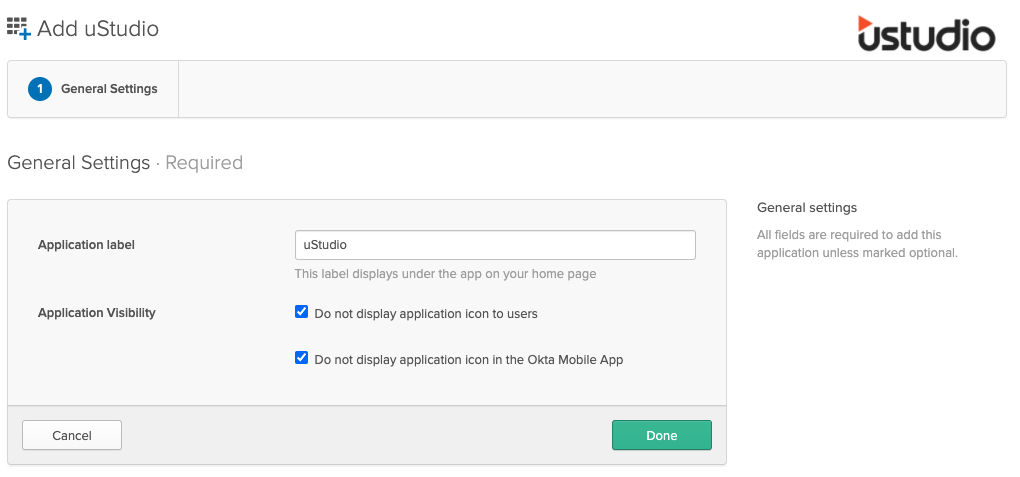
- Go to Applications and add the uStudio application.
- In the General Settings, check “Do not display application icon to users.”
- Check “Do not display application icon in the Okta Mobile App.”
- Click Done.
SAML Settings (optional)
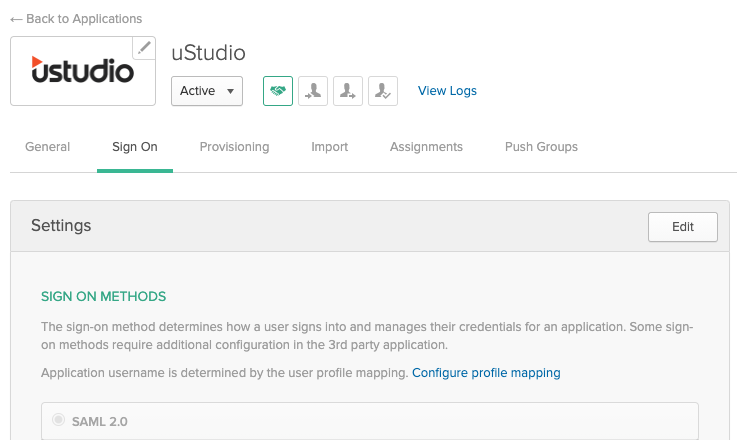
- Click on the Sign On tab and then click Edit.
- Scroll down until you see groupName, then set “Matches regex” from the drop-down and enter in .*.
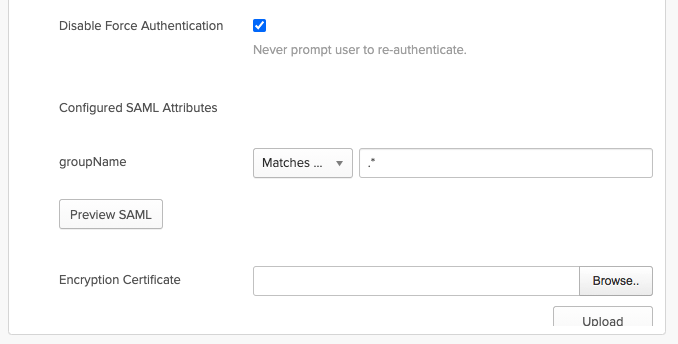
- Upload our uStudio Certificate to Encryption Certificate.
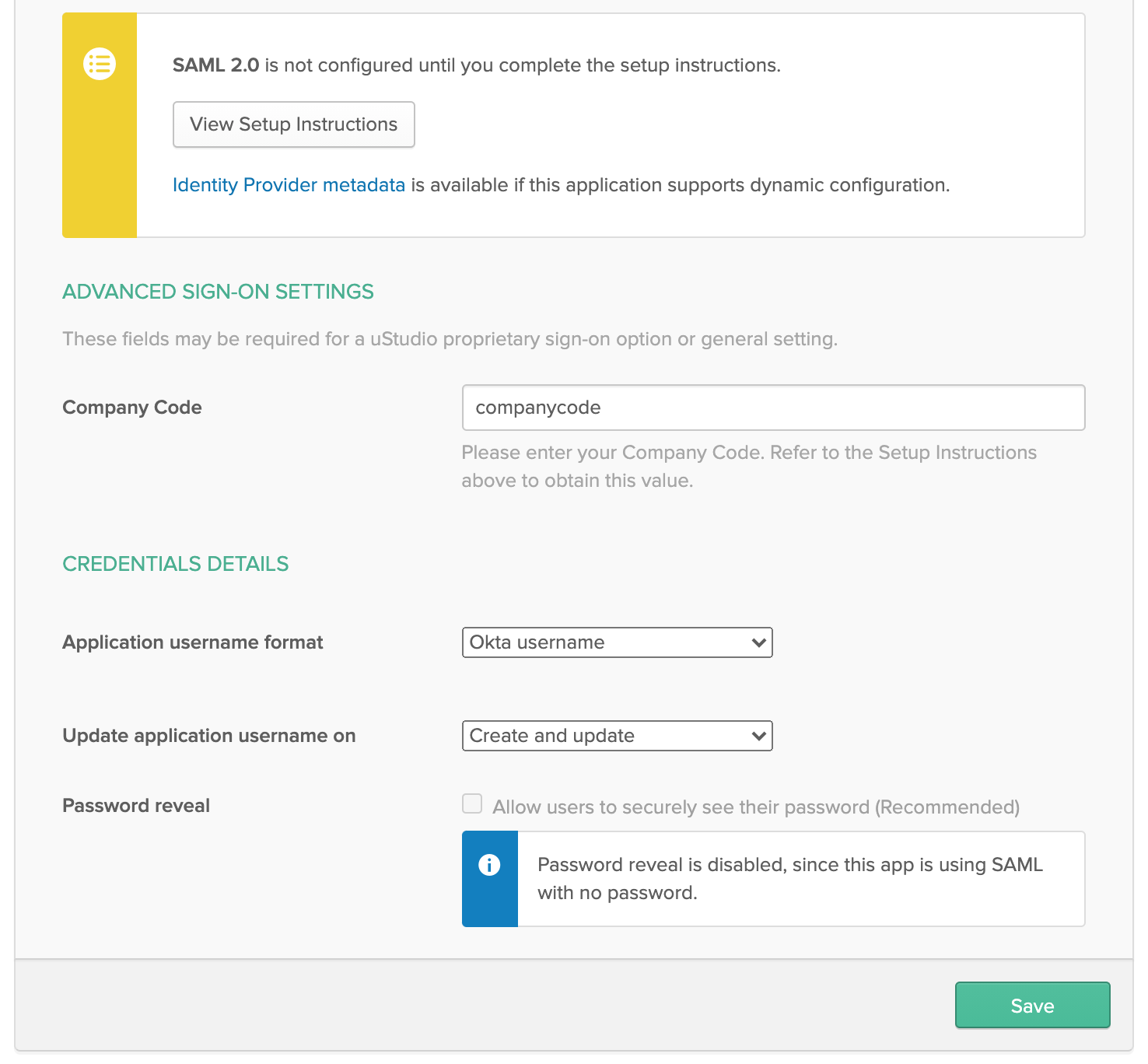
- Send uStudio Support, your Identity Provider metadata in an XML file by clicking the link in the yellow box.
- Set Company Code with your companycode (lowercase).
- Click Save.
SCIM Settings (optional)
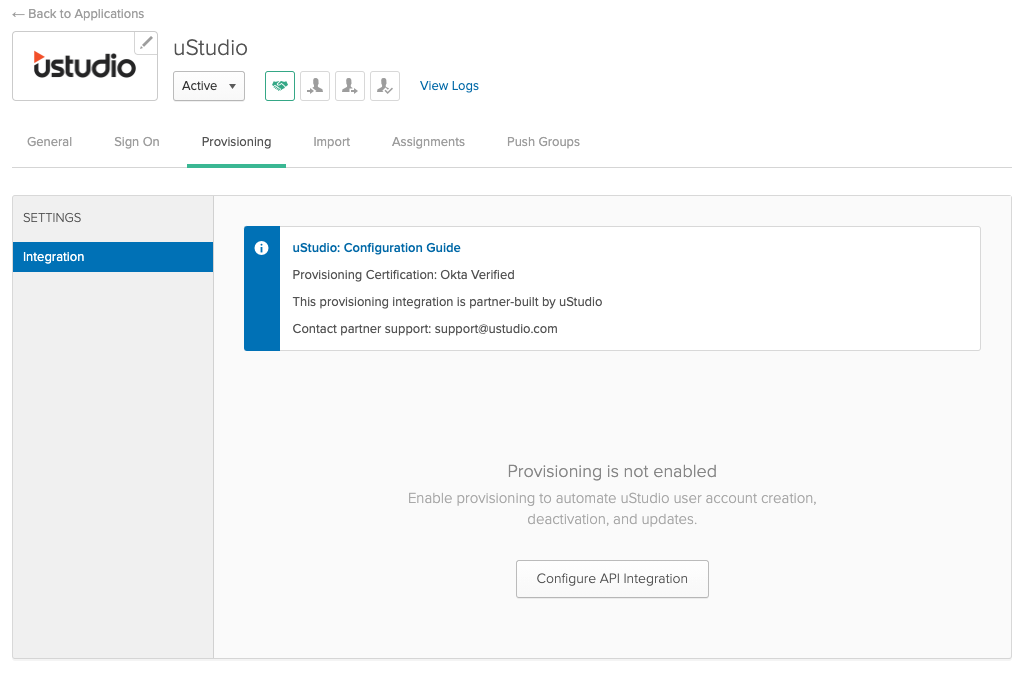
- Click on the Provisioning tab and then click Configure API integration.
- Select Enable API integration.
- Enter Base URL as https://named-users.ustudio.com/api/v1/accounts/ACCOUNT-UID/connections/CONNECTION-UID and API Token as Bearer <TOKEN> and leave Import Groups checked.
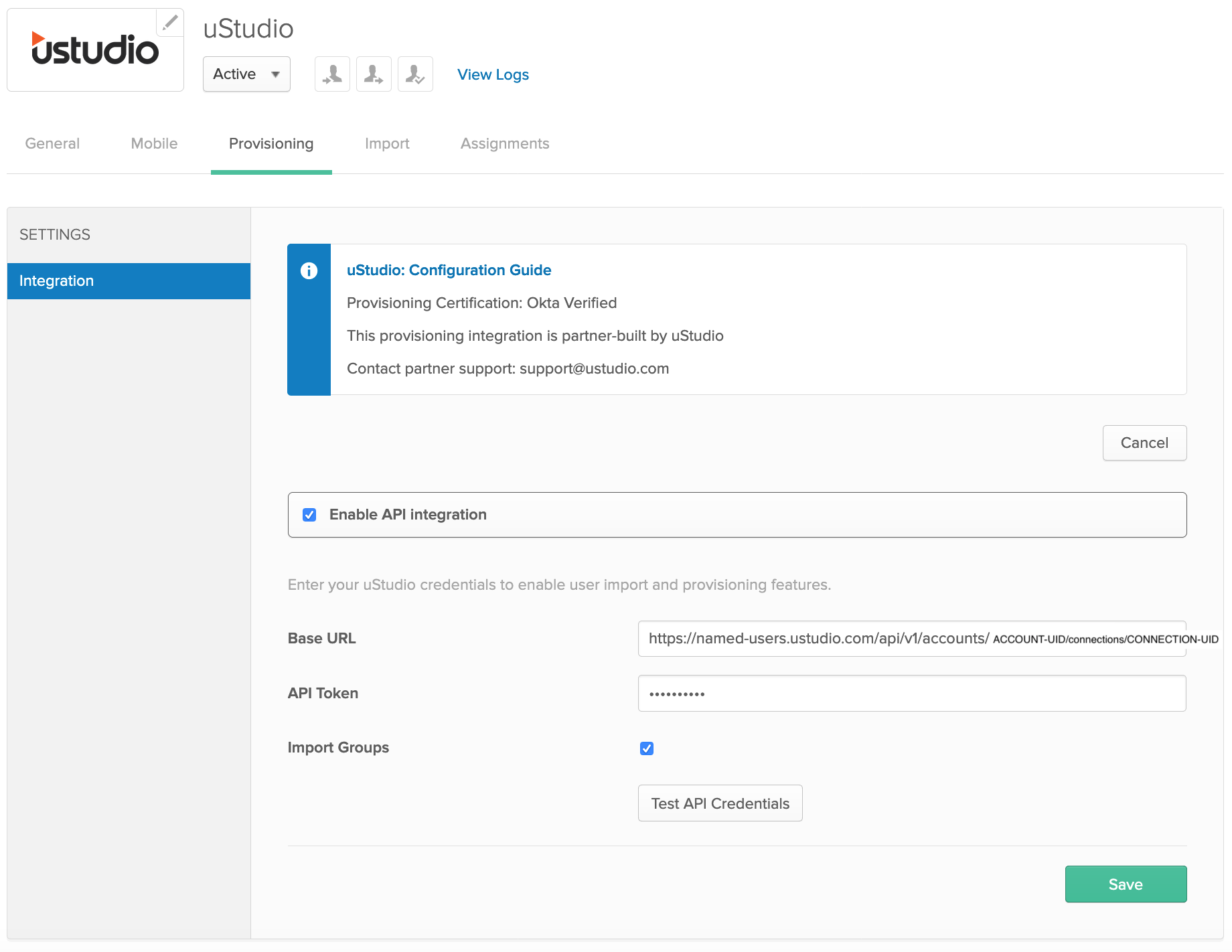
- Click Test API Credentials. If the test passes, click Save.
- Click To App under Settings.
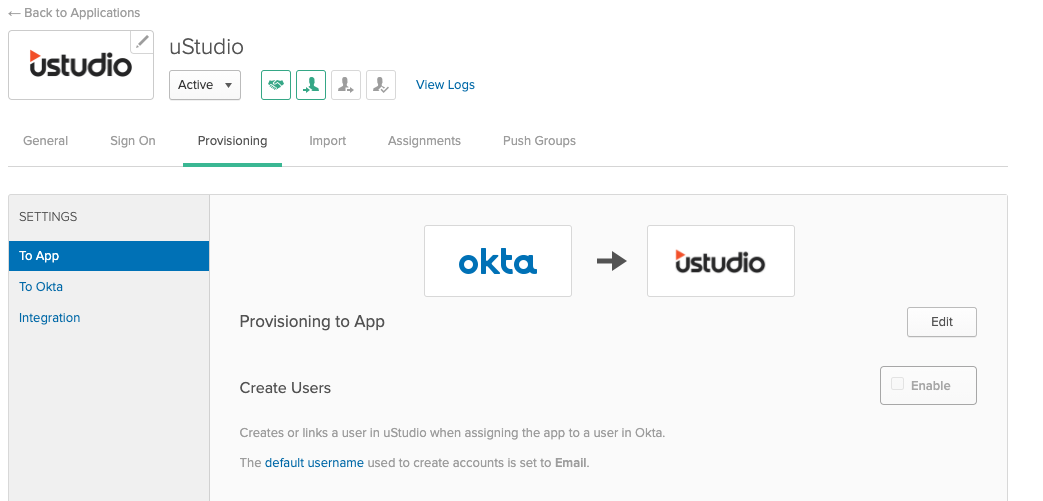
- Click Edit and select Enable for Create Users, Update User Attributes, and Deactivate Users.
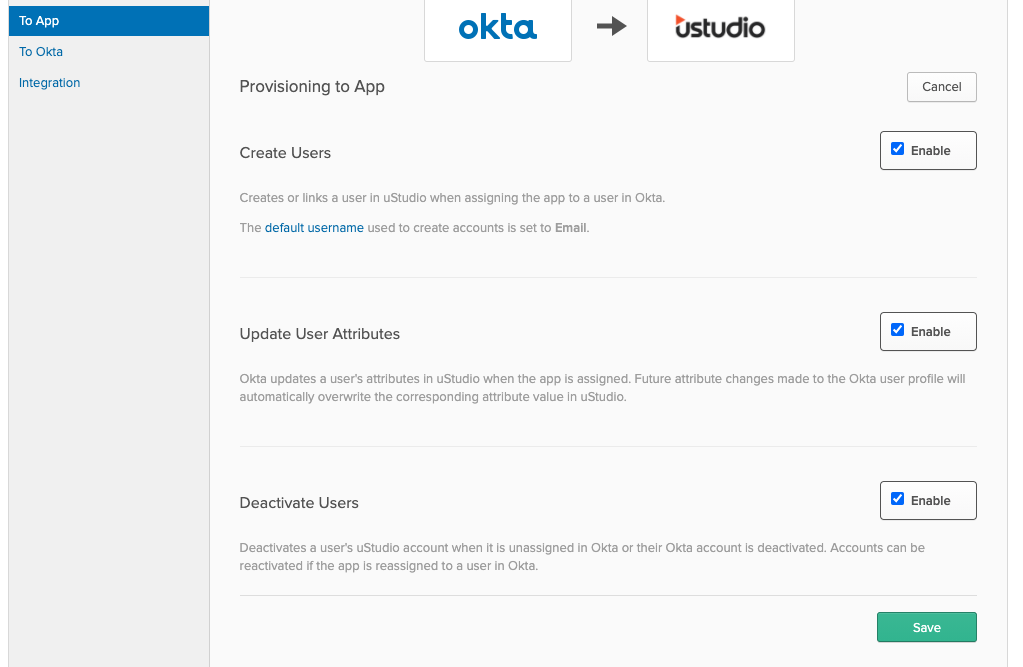
- Click Save to apply the integration settings.
Testing
Once you’re done configuring uStudio’s Okta application, please login into the admin and user applications to test out functionality. Then notify uStudio Support, so we can confirm that the SAML and SCIM connections are successfully established.
Admin Applications
PMC: https://podcast-admin.ustudio.com
User Applications
Mobile
- Download uStudio Enterprise Podcast from Google Play or Apple Store.
- Enter Company Code.
- Sign-in with your user credentials.
Web
Sign in with your user credentials at https://podcast-web.ustudio.com/COMPANYCODE.
Migration
If you currently have a custom Okta SAML or Okta SCIM integration with us, you can easily transfer over to this application by following the instructions up above. Our backend syncs pre-existing user profiles seamlessly.
Updates
When we update uStudio’s Okta application, we will notify you and provide any specific instructions for that update.
Troubleshooting
userName - in Okta cannot be changed because it is bound to an account in uStudio. We recommend creating a new user if the person doesn't wish to use a certain email address as their userName. However, it is possible to change the first name, last name, and primary email address.
If you have any questions or concerns with our Okta integration, please contact support@ustudio.com.


